ARTICLE / 5 MIN READ
My Dashboard Looks Terrible No Matter What I Do
MARCH 4, 2026
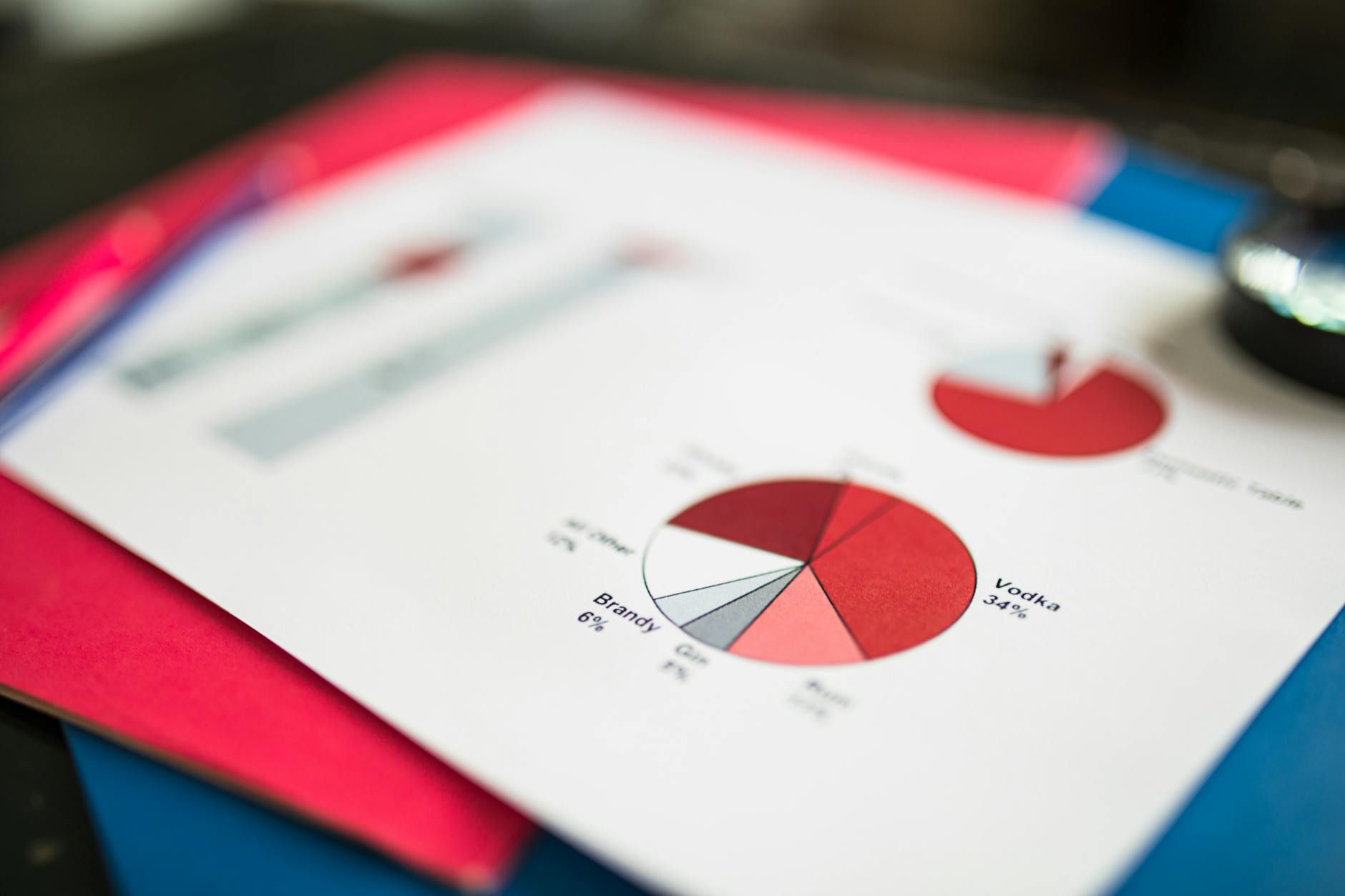
You’ve done everything right. You’ve got the data, you’ve built the charts, you’ve spent a genuinely embarrassing amount of time picking colors. And yet, somehow, your Excel dashboard still looks like it was made in 2007 by someone who had never seen a real dashboard before.
You’re not imagining it. And it’s not your fault.
Here’s what’s actually going on.
The Fundamental Problem: Spreadsheets Aren’t Design Tools
Excel and Google Sheets are calculation tools. They are extraordinarily good at math. Design? That’s a different skill set, and one that these tools weren’t really built for.
When you resize a chart in Excel, it snaps to the cell grid — which means nothing quite aligns the way you want. Fonts are limited. Chart defaults are aggressively ugly. And getting something to look “modern” requires overriding about a dozen default settings, most of which are buried in submenus you’ve never opened before.
This is why dashboards built in Excel by non-designers always have that same slightly-off quality. It’s not a skill issue. It’s a tool mismatch.
The Specific Things That Make Spreadsheet Dashboards Look Bad
Too many colors. Excel’s default color palette is genuinely chaotic. If you haven’t manually changed every chart to use the same 2–3 colors, your dashboard probably looks like a rainbow explosion.
Gridlines showing through. Those faint grey lines in the background? They make everything look more “spreadsheet” and less “dashboard.” Turn them off: View → Gridlines (uncheck it).
Chart borders and shadows. Default charts in Excel come with borders and sometimes even drop shadows. Both of these are signals that say “this was made in a spreadsheet.” Remove them.
Different font sizes everywhere. If your title is in one font, your axis labels in another, and your data labels in a third, the whole thing feels visually noisy. Pick one font. Use it for everything. Vary only the size.
Too much data. The temptation is to put everything in. Resist it. A dashboard with 12 charts tells no story. A dashboard with 4 charts tells one clearly.
A Quick Visual Overhaul Checklist
If you have 20 minutes and want to make your current dashboard look significantly better:
- Turn off gridlines — View → Show → Gridlines (uncheck)
- Set your background to white — Select all cells, fill color: white
- Pick two colors — One for your main data, one for highlights. Apply them consistently to every chart
- Remove all chart borders — Right-click each chart → Format Chart Area → Border: No line
- Increase font sizes — Axis labels should be readable at a glance. If they’re tiny, bump them up
- Delete the chart legend if it’s obvious — If your chart only has one data series, the legend is just clutter
- Add whitespace — Drag chart edges so there’s breathing room between elements
When Good Enough Isn’t Good Enough
If you’re sharing this dashboard with stakeholders, clients, or anyone outside your immediate team, “functional” often isn’t enough. The way data looks affects how much people trust and engage with it.
If you’d rather not spend hours wrestling with chart formatting, Sheetglow pulls the data straight from your spreadsheet and generates a clean, designed dashboard automatically. The charts look like charts — not like something pasted onto a grid.
The Honest Truth
You can make a spreadsheet dashboard look decent with effort. You can’t make it look great — at least not without a level of effort that’s probably not worth it for most use cases.
The best dashboards you’ve seen online? They were almost certainly not built in Excel. They were built in tools designed specifically for visualization.
For a lot of people, the smarter move is: keep your data in the spreadsheet (because that’s what spreadsheets are great at), and let something else handle the presentation.
Your data deserves to be seen. Not squinted at.