ARTICLE / 5 MIN READ
How to Use Conditional Formatting in Google Sheets to Make Your Data Pop
MARCH 16, 2026
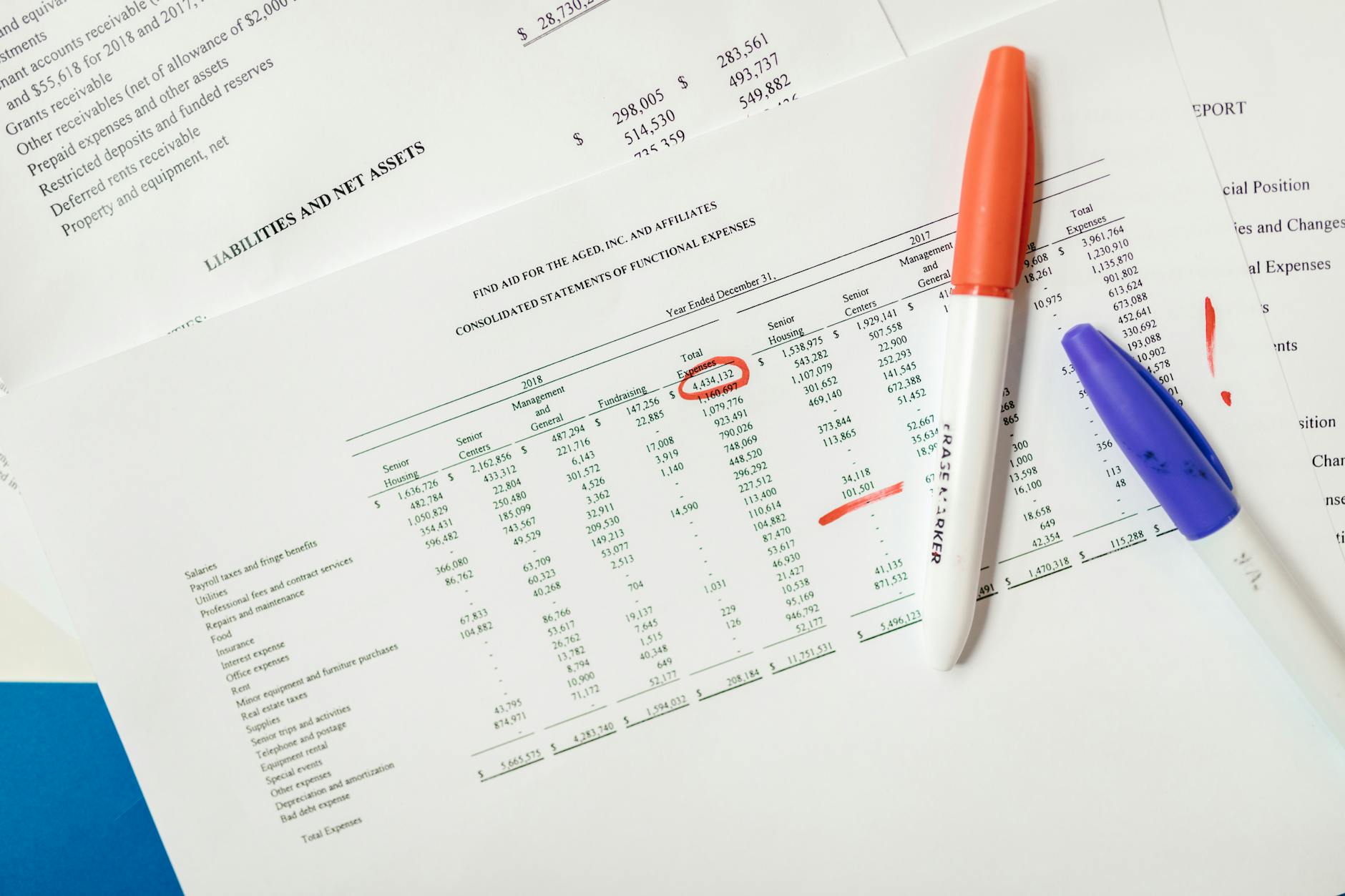
Conditional formatting is one of those Google Sheets features that most people know exists but only use at about 10% of its potential. The most common use: “highlight cells greater than X in red.” That’s fine, but it barely scratches the surface.
Done well, conditional formatting can turn a plain grid of numbers into something that immediately communicates what matters — which rows need attention, which targets are hit, which values are outliers. Here’s how to use it properly.
The Basics: Single Color Rules
To get started, select the range you want to format, then go to Format → Conditional formatting.
The sidebar that opens lets you set a rule. Under “Format cells if,” you choose a condition — things like “Greater than,” “Text contains,” “Is empty,” “Date is before,” and many more. Then you pick what the cell should look like when the condition is true.
A few rules that are immediately useful in any report:
Highlight cells above a target: Set the rule to “Greater than or equal to” and enter your target value. Use green fill. Any cell that hits the target lights up at a glance.
Flag cells that are empty: Set the rule to “Is empty” with a yellow or orange fill. Instantly surfaces missing data in a report you’re about to share.
Highlight overdue dates: Set the rule to “Date is before” → “Today.” Any date in the past will turn red, making overdue items obvious without manual scanning.
Color Scales: The Heatmap Effect
Beyond single-color rules, Google Sheets has a “Color scale” option. Instead of a binary on/off, it applies a gradient across a range — for example, the lowest values get red, the highest get green, with everything in between shading accordingly.
This works beautifully for sales rep performance tables, regional comparisons, or any data where relative performance matters more than absolute thresholds. Select your range → Format → Conditional formatting → Color scale, then set your min and max colors.
The Powerful Move: Custom Formula Rules
This is where most people stop, but the real power is in custom formulas. Instead of just “is greater than,” you write your own formula — and it unlocks the ability to do things like highlight an entire row based on a value in one column.
Here’s a classic example: you have a task list with a “Status” column in column D. You want the entire row to turn grey when status is “Done.”
- Select your entire data range (e.g.,
A2:F100) - Go to Format → Conditional formatting → Custom formula is
- Enter:
=$D2="Done" - Set the fill to grey
The $D (dollar sign before the column only, not the row) is the key — it locks the formula to always check column D, but lets it adjust for each row. Every row where D says “Done” will now go grey automatically.
Other useful custom formula examples:
- Highlight duplicates:
=COUNTIF($A$2:$A$100, A2) > 1 - Alternating row colors (true zebra striping):
=ISEVEN(ROW()) - Flag rows where a number is below average:
=B2 < AVERAGE($B$2:$B$100)
Managing Multiple Rules
Once you have several rules, order matters. Google Sheets applies rules from top to bottom and stops at the first one that matches. So if you have a rule for “greater than 100 → green” and another for “greater than 50 → yellow,” a value of 150 will only get green — the first match wins.
To reorder rules, open Format → Conditional formatting and drag them in the sidebar. To see all rules at once for the entire sheet, change the dropdown at the top of the sidebar to “Current sheet.”
Common Mistakes to Avoid
Applying rules to entire columns. A:A covers over a million rows. Google Sheets evaluates the rule for every single one of them. Limit your rules to the actual range your data occupies (e.g., A2:A500).
Too many overlapping rules. Each additional rule adds processing overhead. If your sheet is getting slow, check how many conditional formatting rules are applied — you can accumulate dozens without realising it. Clean up rules you no longer need.
Not using absolute and relative references correctly. When writing custom formula rules, forgetting the $ in the right place is the number-one cause of formatting applying to the wrong cells. To lock a column, use $A; to lock a row, use A$1.
From Formatting to a Real Dashboard
Conditional formatting is great for making a spreadsheet more readable, but there’s a ceiling to how far it can take you. Once you want interactivity, charts, sharing with people who shouldn’t be editing the data, or a view that updates automatically — you’re into dashboard territory.
Sheetglow takes your Google Sheets data and builds a proper shareable dashboard from it automatically, without you having to build it cell by cell. If conditional formatting is currently doing the heavy lifting of your reporting, it might be worth a look.
Conditional formatting is one of the fastest ways to add clarity to any spreadsheet. Start with a few simple rules, then experiment with custom formulas — once you’ve used =$D2="Done" to auto-grey completed tasks, you’ll wonder how you managed without it.